
As a seller on Daraz, keeping track of your orders is crucial for efficient inventory management, sales analysis, and overall business growth. Downloading your order report directly from your seller account allows you to analyze your performance and make informed decisions. This article will guide you through the steps of downloading an order report in your Daraz seller account.
Step 1:
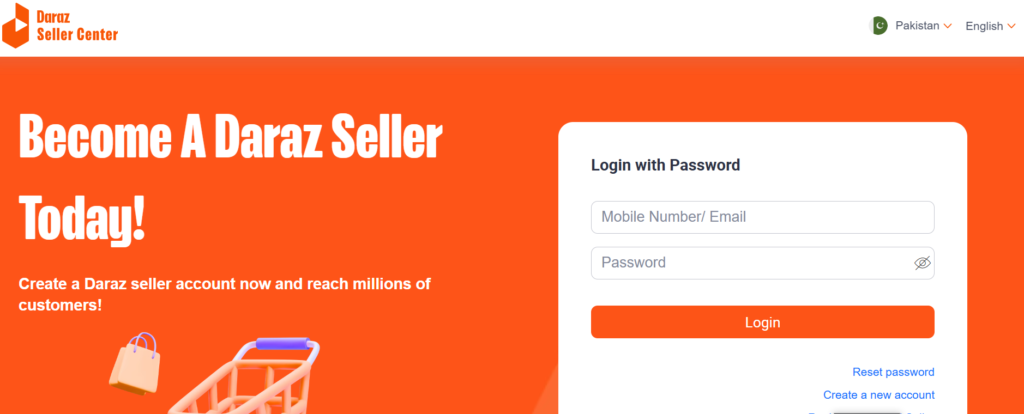
Login to the seller center. Go to the ‘Orders’ Tab. Click on ‘Manage Orders‘.
Step 2:
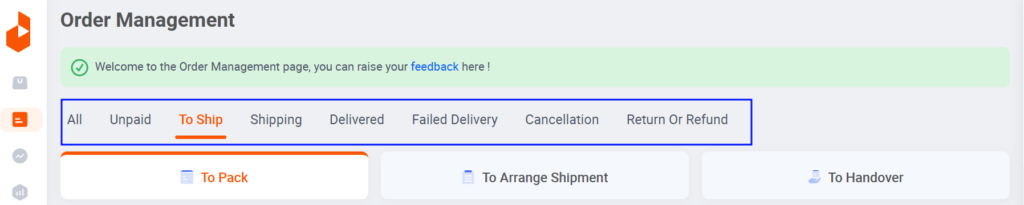
You will arrive at ‘Orders Overview‘ Page. Go to the relevant tab and export orders.
Step 3:
Go to the pending tab.
Step 4:
Go to Export.
Step 5:
Click on ‘exports all orders’ or ‘export all pending orders’.
Step 6:
Choose the file and click on Download.
Step 7:
Once the exported file is downloaded in CSV format, use “Google Sheets or Microsoft Excel” to open the report.
Note: You can also choose the period for which you want to download the reports.
Step 8:
Click on the Calendar Icon.
Step 9:
Then choose the Date Range.
By using this step by step guide, you can access to your order history, allowing you to keep track of all your business activity on Daraz.